 ShapeMason
Import into Fusion, Onshape, FreeCAD and SolidWorks
DXF sketches and STEP solids that any CAD tool reads
ShapeMason was built for Shapr3D, and its files work in anything that reads DXF or STEP. Sketches are in millimeters with the units in the file, closed profiles extrude, and arcs arrive as true arcs. Solids are STEP with merged flat faces and, with Prismatic conversion, real cylinders that hole and fillet tools work on.
Before and after
Before: bracket.stl |
After: bracket.step |
|---|---|
 |
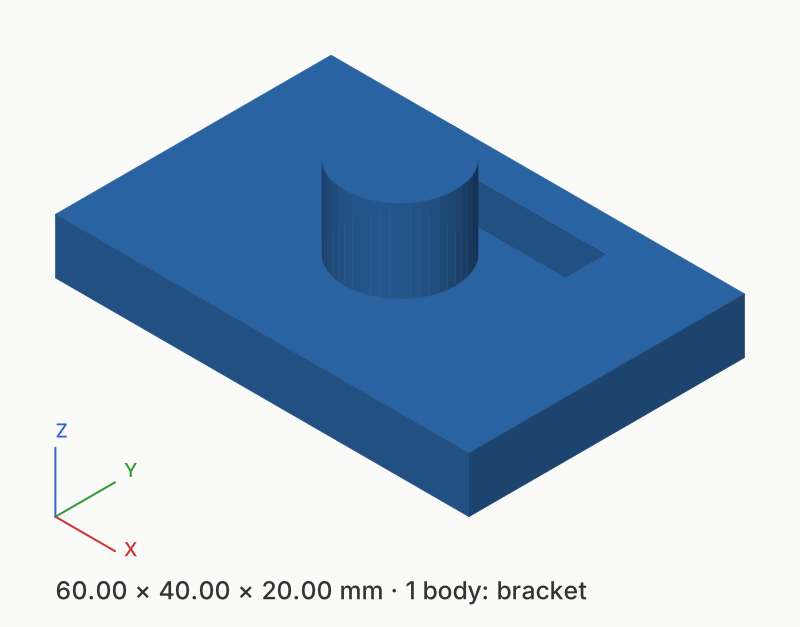 |
The sample bracket.stl converted with Prismatic conversion: a solid with 15 faces that each CAD tool below imports as a body.
Steps
In the web app
- Open shapemason.com and drop your SVG, DXF or mesh on the page.
- Choose what to make: Sketch (DXF) or Extrude (STEP) for vector art, Mesh to Solid (STEP) for meshes.
- Choose Convert, then import the file as below.
In the app for Mac, iPad and iPhone
- Drop the file on the window, or open it with + on iPad and iPhone.
- Choose what to make in the toolbar, tune the options and watch the preview.
- Choose Convert (⌘R on a Mac), then import the file as below.
On the command line
shapemason logo.svg                        # logo.dxf
shapemason extrude logo.svg --depth 3      # logo.step
shapemason mesh-to-solid part.stl --prismatic
Fusion
- DXF: Insert › Insert DXF, choose a plane or face, pick the file and set the unit to millimeters.
- STEP: File › Open › Open from my computer, or upload it in the Data Panel. Imported STEP is a base feature without history; merged faces select as one, and cylinders work with Press Pull and Fillet.
Onshape
- DXF: in a Part Studio sketch, use Insert DXF or DWG and choose millimeters.
- STEP: Import on the Documents page or from the + menu; Onshape makes one part per solid. Onshape treats meshes as reference only, so converting is the way to edit a downloaded mesh there.
FreeCAD
- DXF: File › Import. The geometry arrives as Draft objects; use the Draft workbench's Draft to Sketch for Part Design. If arcs or splines come in wrong, make the DXF with Curves › Polylines.
- STEP: File › Open or File › Import. Each solid is a Part feature you can use as a base feature or in booleans.
SolidWorks
- DXF: File › Open with the type set to DXF, then Import to a new part as 2D sketch in millimeters.
- STEP: File › Open with the type set to STEP. Each solid becomes an imported body; FeatureWorks, where available, can recognize holes made by Prismatic conversion.
Try it
Open ShapeMason in your browser
Nothing to install, and your files are converted on your device, never uploaded. Prefer an app or a terminal? Get the Mac app or the command-line tool.
The full guide, with every option, on docs.shapemason.com: