 ShapeMason
SVG to DXF for Shapr3D
Shapr3D doesn't import SVG
Shapr3D imports DXF sketches and STEP solids, but not SVG. ShapeMason turns an SVG (or SVGZ) from Illustrator, Inkscape, Figma or Affinity into a DXF sketch of closed profiles that Shapr3D can extrude, revolve or cut with, at the size you set.
Before and after
Before: logo.svg |
After: logo.dxf |
|---|---|
 |
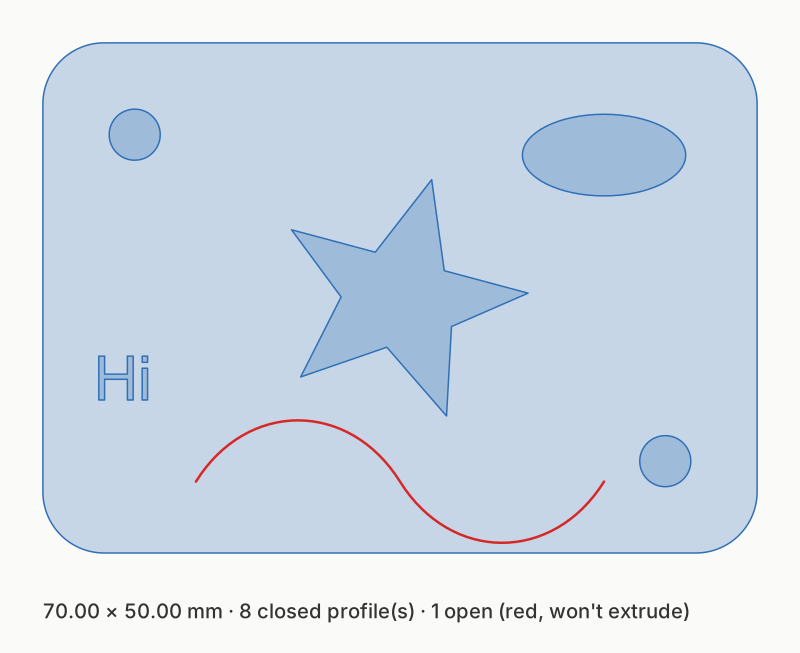 |
The sample logo.svg as a sketch. Closed profiles are filled; the open curve (red) is kept as a line, with a warning, and won't extrude.
Steps
In the web app
- Open shapemason.com and drop
logo.svgon the page, or use Open Files. - Keep Sketch (DXF). Set Scale to width to the size you want in mm, and Origin to Center.
- Choose Convert. The DXF downloads; nothing is uploaded.
In the app for Mac, iPad and iPhone
- Drop
logo.svgon the window, or open it with + on iPad and iPhone. - Keep Sketch (DXF), then set Scale to width and Origin.
- Choose Convert (⌘R on a Mac).
On the command line
shapemason logo.svg                                   # logo.dxf next to it
shapemason sketch logo.svg --width 60 --origin center
Import into Shapr3D
- In Shapr3D, use Import, or drop the file on the design, and choose the DXF.
- Place the sketch on a plane or face. ShapeMason writes millimeters and says so in the file; if Shapr3D asks for units, choose millimeters.
- Select the closed profiles and extrude them.
What it does
- Closes the gaps. Endpoints closer than 0.01 mm are snapped so shapes close, and duplicate outlines are removed.
- Keeps curves true. Curves that are really arcs, circles or ellipses arrive as arcs, circles and ellipses you can dimension and constrain; other curves become splines.
- Gets the size right. Output is millimeters with the units in the file, so Shapr3D doesn't guess the scale.
- Tells you what won't work. Open paths are reported; turn on Closed shapes only to leave them out. The app and the command line set SVG text in your installed fonts; the web app leaves text out.
Try it
Open ShapeMason in your browser
Nothing to install, and your files are converted on your device, never uploaded. Prefer an app or a terminal? Get the Mac app or the command-line tool.
The full guide, with every option, on docs.shapemason.com: