 ShapeMason
Mesh sections and silhouettes as DXF
Rebuild a mesh as a parametric part
When you'd rather rebuild a mesh properly than convert it, start from sketches of it. Cross Section cuts an STL, 3MF, OBJ, PLY or glTF mesh with planes at the positions you choose; Project Silhouette looks along an axis and draws its outline. Both write a DXF sketch you can trace, measure or extrude.
Before and after
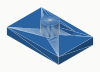
Before: bracket.stl |
After: sections and silhouette |
|---|---|
 |
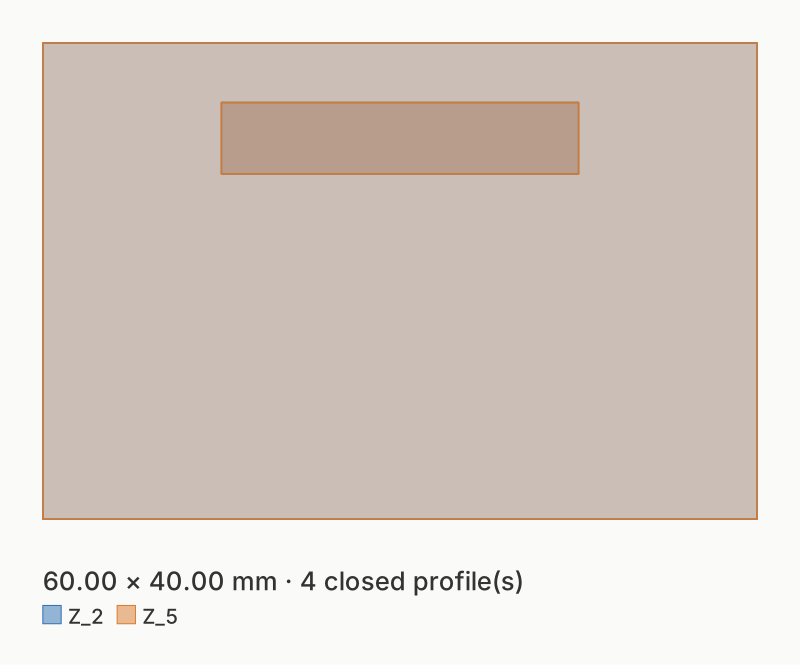 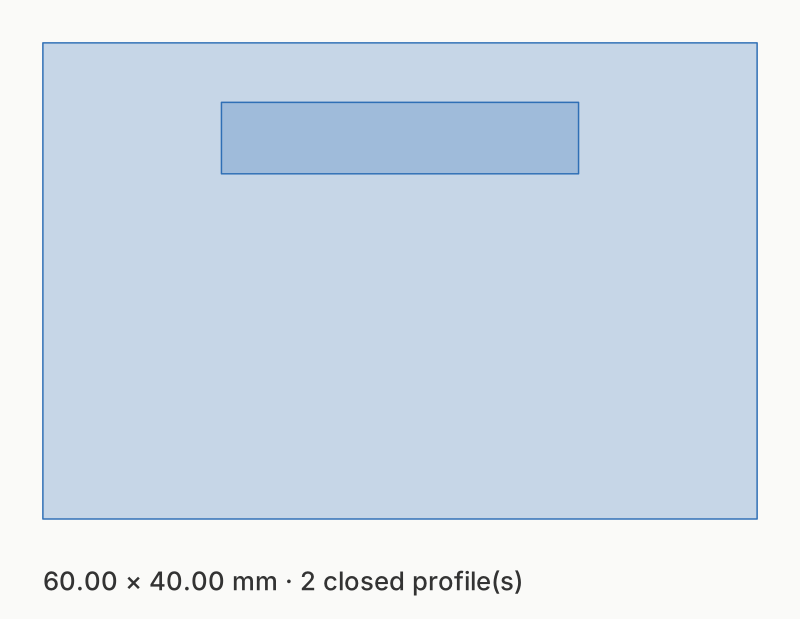 |
The sample bracket.stl cut at Z = 2 and Z = 5 mm (one DXF layer per cut, Z_2 and Z_5), and projected along Z (layer OUTLINE_Z).
Steps
In the web app
- Open shapemason.com and drop the mesh on the page, or use Open Files.
- Choose Cross Section (DXF) and set Section › Axis and Positions in mm, or choose Project Silhouette (DXF) and set Axis.
- Choose Convert. The preview shows the section as you change the positions.
In the app for Mac, iPad and iPhone
- Drop the mesh on the window, or open it with + on iPad and iPhone.
- Choose Cross Section (DXF) or Project Silhouette (DXF) and set the axis and positions.
- Choose Convert (⌘R on a Mac).
On the command line
shapemason section bracket.stl --at 2,5       # two sections in one DXF
shapemason section bracket.stl --axis x --at 10
shapemason project bracket.stl                # the outline seen along Z
What people use it for
- Fit checks. Overlay a section on a circuit board's outline to check clearances inside a printed case.
- Stacked laser-cut models. One section per sheet thickness.
- Foam inserts and shadow boards. The silhouette of a tool, offset for clearance.
- Drilling and mounting templates. The footprint of a part, at full size.
A position outside the mesh is a warning and gives nothing for that cut; Analyze shows the mesh's size. The mesh options (units, up axis, origin, object, repair) apply, so sections line up with a solid converted from the same file.
Try it
Open ShapeMason in your browser
Nothing to install, and your files are converted on your device, never uploaded. Prefer an app or a terminal? Get the Mac app or the command-line tool.
The full guide, with every option, on docs.shapemason.com: