 ShapeMason
Text to DXF for name plates, stamps and keychains
Type it, get profiles
ShapeMason sets text in a font you have installed and writes the letters as closed profiles: a DXF sketch to cut, engrave or extrude, or with a depth a STEP solid. Letters with holes, such as A, B and O, keep them. There's no design tool in between and no broken glyph outlines to fix in CAD.
Text needs the app or the command line. Browsers don't let web pages read your installed fonts, so the web app can't set text.
Before and after
| Before: typed text | After: ShapeMason.dxf |
|---|---|
| The word ShapeMason, typed in, at 10 mm | 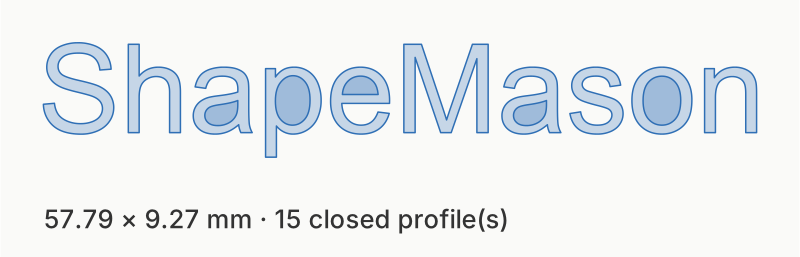 |
The word ShapeMason at 10 mm, in the default sans-serif.
Steps
In the app for Mac, iPad and iPhone
- In the sidebar, choose Set Text (⌘T on a Mac) and type the text.
- Pick Text Sketch (DXF), or Extruded Text (STEP) with a Depth.
- Set Font, Size and Alignment, then convert. Text has no file to sit beside, so the app asks where to save unless Save To is a folder.
On the command line
shapemason text "WILLOW" --font "Avenir Next" --size 20             # WILLOW.dxf
shapemason text "WILLOW" --font "Avenir Next" --size 20 --depth 3   # WILLOW.step
shapemason text "J&C" --mirror --size 15 --depth 4                  # a stamp
Several arguments give several lines; Alignment (--align) lines them up.
In the web app
Not available: the browser has no access to your fonts. Convert text to outlines in your design tool, then open the SVG in the web app as a sketch or a solid.
Name plates, stamps and keychains
- Name plates and keychains. Extrude the name, then combine it with a base you make in CAD. Script fonts can overlap between letters: turn on Union (
--union) for one solid. - Stamps. Turn on Mirror (
--mirror) so the stamp prints the right way round. - Engraved labels. A multi-line DXF for laser software, centered with Alignment › Center.
- Brand fonts. Point Extra fonts folder (
--font-dir) at font files that aren't installed.
Try it
The Mac app and the command-line tool set text; the iPad and iPhone app is coming to the App Store. Your files and text never leave your device.
The full guide, with every option, on docs.shapemason.com: