 ShapeMason
STL, 3MF, OBJ and glTF to STEP
A real solid from a mesh
A mesh is a skin of triangles. Shapr3D and Onshape treat meshes as reference only, and CAD tools can't push, pull or fillet them like a solid. ShapeMason merges the triangles of each flat area into one face and writes a STEP solid you can boolean, shell and fillet. With Prismatic conversion, faceted holes and bosses become true cylinders. It reads STL, 3MF, OBJ, PLY, glTF and GLB.
Before and after
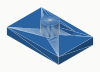
Before: bracket.stl |
After: bracket.step |
|---|---|
 |
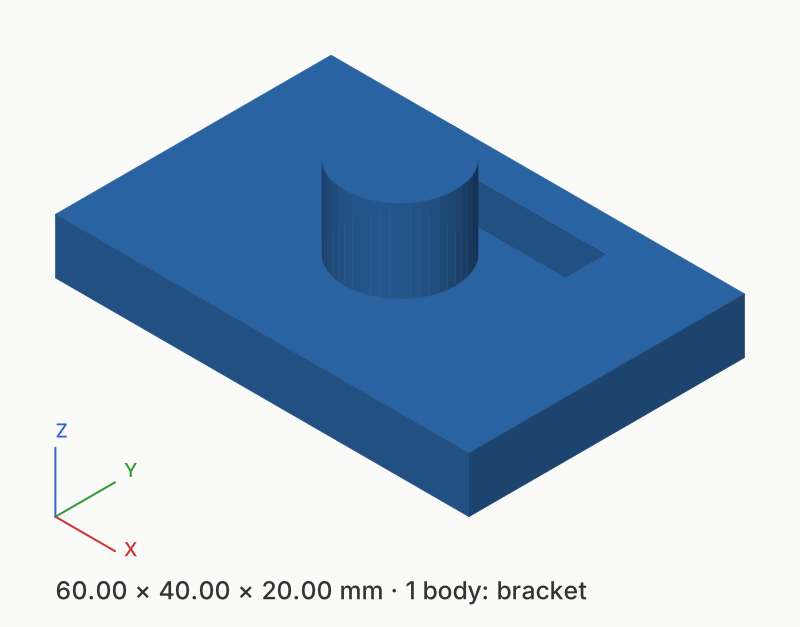 |
The sample bracket.stl with Prismatic conversion: 226 triangles become 15 faces, and the round pocket one cylinder.
Steps
In the web app
- Open shapemason.com and drop the mesh on the page, or use Open Files.
- Keep Mesh to Solid (STEP) and turn on Prismatic conversion. The 3D preview shows the merged faces.
- Choose Convert. For one file per part, choose Split to Bodies (STEP) instead.
In the app for Mac, iPad and iPhone
- Drop the mesh on the window, or open it with + on iPad and iPhone.
- Keep Mesh to Solid (STEP) and turn on Prismatic conversion.
- Choose Convert (⌘R on a Mac).
On the command line
shapemason bracket.stl                              # bracket.step next to it
shapemason mesh-to-solid bracket.stl --prismatic --origin bottom-center
shapemason split plate.3mf -d parts/                # one STEP per part
Before you convert
A solid needs a watertight mesh: every edge shared by exactly two triangles. Analyze shows each object's triangles, shells, size and whether it is watertight. If it isn't, the report offers Repair Mesh and Retry, or Import as Surface Body for an open scan.
What it does, and what it doesn't yet
- Flat faces. Coplanar triangles merge into one face, so a cube becomes 6 faces, not 12 triangles.
- Cylinders. With Prismatic conversion, cylinders with square-cut ends are recognized. Cones, spheres, tori and cylinders whose ends aren't square to the axis stay as flat facets, which still work with booleans.
- Units and placement. 3MF units and transforms are kept; STL has no units, so millimeters are assumed. Up axis and Origin fix models from Blender or game tools.
Try it
Open ShapeMason in your browser
Nothing to install, and your files are converted on your device, never uploaded. Prefer an app or a terminal? Get the Mac app or the command-line tool.
The full guide, with every option, on docs.shapemason.com: